How to use google voice for extremely easy on-the-fly podcasting:
- Make sure you have a google voice account if you don’t already have one and sign into your inbox area.
- Call your google voice number and leave yourself a message.
- When the message populates in your inbox, select the “more” option and then select “Embed”:
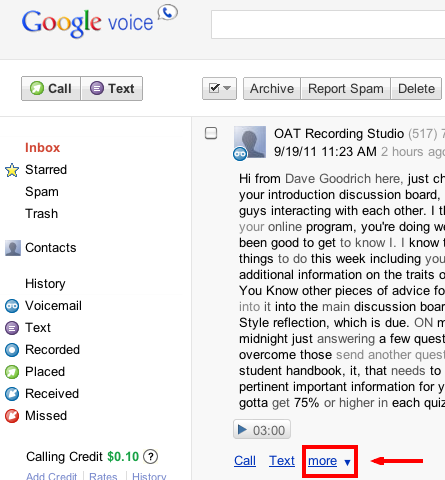
4. Add a caption for your podcast (this is optional).
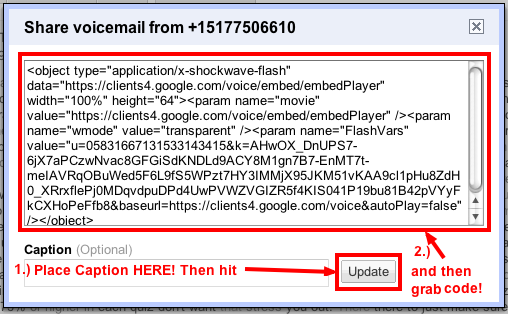
5. Copy the embed code into your computer’s clipboard (control + “c” on the P.C. & Command + “c” on the Mac)
6. Go to your course in Blackboard and select to create a new announcement.

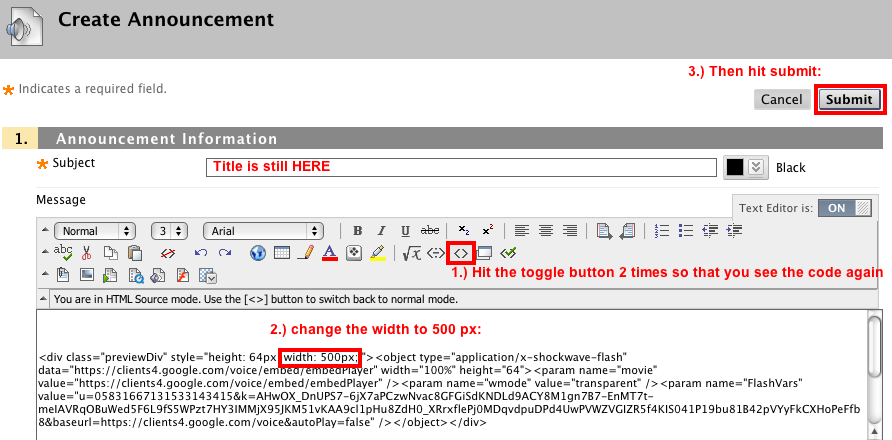
7. Give the announcement a title and then select the “Toggle HTML Source Code” button in the rich text editor toolbar and paste in the embed code that is in your clipboard (control + “v” on the P.C. & Command + “v” on the Mac)

8. Hit the “Toggle HTML Source Code” button in the rich text editor toolbar.
9. Hit the “Toggle HTML Source Code” button in the rich text editor toolbar one more time.
10. Make sure that the “width: 100px” is changed to “width: 500px” in the embed code and then hit submit!
*This same process can be followed for a recorded phone call from google voice which can be done by using these instructions.
The end result will have a flash player embedded media player from Google Voice that the learner will see in the announcements page so that they can listen to your nifty podcast:


 Many online course instructors use announcements to communicate on a regular basis with the learners. Some instructors create introductions to modules using video, audio, or presentation tools. Leveraging google voice for “on-the-fly” podcasts allows instructors to be able to quickly and easily record their announcments so that learners can hear the announcement coming directly from their instructor to give the course a more personalized tone.